By TemaLab · PDF and scanned table to Excel converter (Windows 10/11)
TemaSelExtract tables from PDFs, scans and photos into Excel — without retyping, and without uploading your files.
Total (Monthly) ¥980/month(tax incl.) approx. US$6.30. Renews monthly. Cancel anytime
- You pay in Japanese yen on Stripe's secure checkout. Your card issuer converts the amount to your currency, so the final charge may differ slightly from the US$ estimate. Your license key appears right after payment and is also emailed to you.
- The full version is the same app as the free version. Just enter your license key in the free version to unlock it.
- The monthly plan renews automatically every month. You can cancel anytime from the link in your purchase email and keep using it until the end of the current period (no prorated refunds).
What the full version adds
- Ask an AI to do it. The full version can be driven from Claude Code or the Claude desktop app on your PC. Ask “Convert all the invoices in this folder to Excel” and TemaSel opens and does the work. Your documents are converted on your PC and never uploaded, so it works for confidential paperwork too. It may also work with other AI tools that support MCP (we've tested it with Claude). Claude is not included in the price of TemaSel.
- No more 3-page limit on exporting and copying to Excel or CSV
- Convert as many pages as you like for the same price. One license covers up to 2 PCs
If Windows shows a blue “Windows protected your PC” screen, click “More info” and then “Run anyway”. See how to install.
Every feature works in the free version, and you can review and fix every page on screen. Exporting and copying to Excel/CSV is limited to 3 pages with tables per export (no watermark). Converting from AI (Claude) or the command line is a full-version feature.
User guide (PDF)
Installation, reading, the Review & fix screen and exporting, step by step with real screenshots.
How buying works
- Choose a plan
- Enter your cardon Stripe's page
- Get your license keyright after payment
At a glance
Runs on your PC — your files are never uploaded. TemaSel is a Windows app that finds the tables in PDFs, scanned PDFs and photos (JPEG, PNG) and converts them to Excel (xlsx) and CSV. Unlike online PDF converters, your files are never uploaded.
- Reads text PDFs, scanned PDFs and phone photos of tables
- Original page on the left, table on the right — fix misreads before you export
- Amounts and ISO-style dates become real Excel numbers and dates; codes like “0012” stay as text
- Drop in a whole folder. Stop anytime and pick up where you left off
- Full version: ask Claude Code or the Claude desktop app to convert a whole folder for you
- Reads English, Japanese and Chinese documents. The app runs in English, Japanese or Simplified Chinese
See sample resultsUse it from AI (Claude)What it can't readCompare plansFAQ
What the results look like
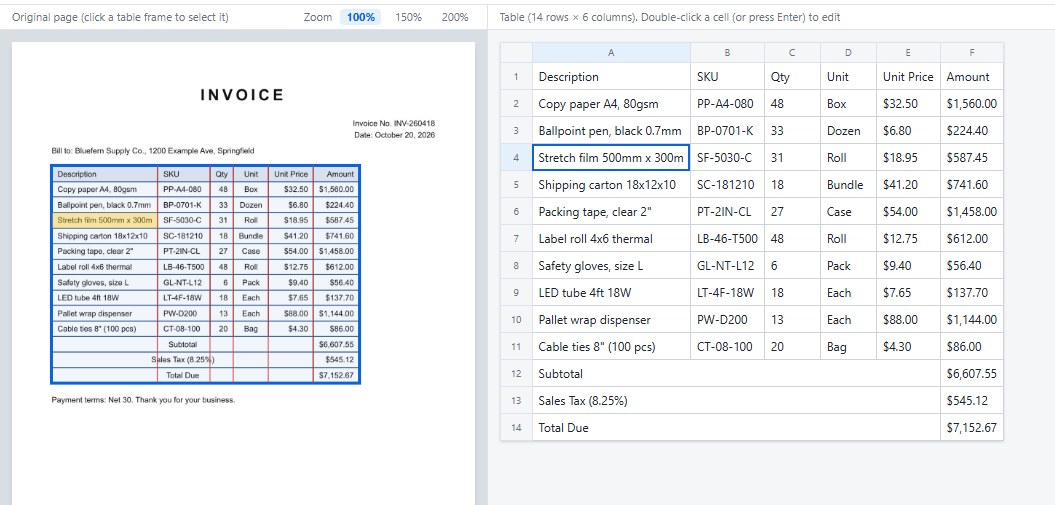
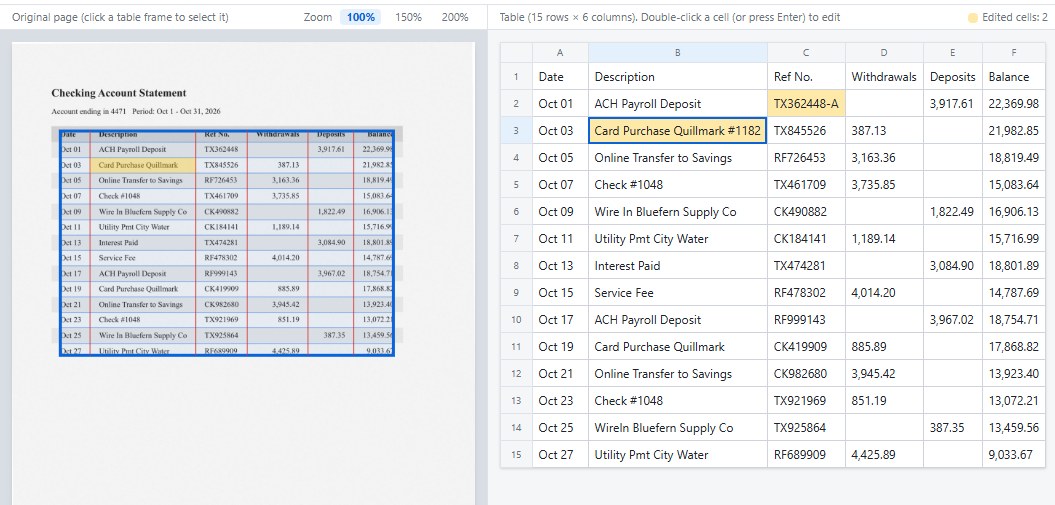
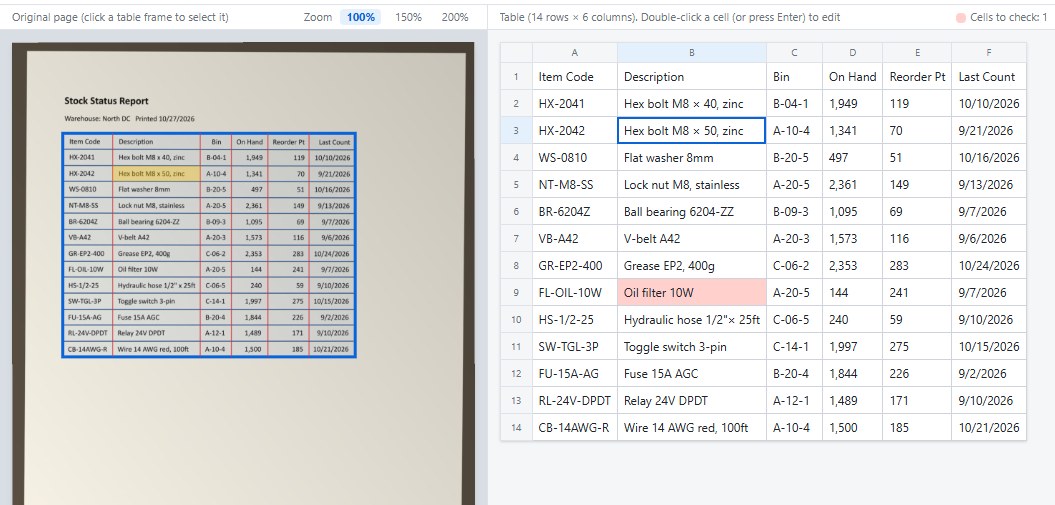
These are real TemaSel screens. On the left is the original page (the blue frame is the table it found); on the right is the extracted table. Nothing has been retouched (yellow cells were edited on screen to show the editing tools). The documents are fictional test samples. Click an image to enlarge it.
What TemaSel does
Invoices and statements that arrive as PDFs, paper lists and stock sheets — TemaSel saves you from typing those tables into Excel by hand. Every screenshot below is the actual app; the documents are fictional.

Tables from PDFs, scans and photos, rebuilt as Excel tables
TemaSel finds the tables in PDFs (with or without a text layer) and in photos (JPEG, PNG), then rebuilds the rows and columns. For text PDFs it uses the text already in the file, which is fast; scans and photos are read with OCR. It tells the two apart automatically.
If a page has several tables, each one comes out separately. It works best with ruled tables, and it can also split columns in tables without lines by how the text lines up. Slightly tilted phone photos are straightened before reading.
Text PDFs take a moment per page; scans and photos take a few seconds per page. Speed depends on your PC and the document.
Misreads can happen — small fax print and rough scans are the usual suspects. That's why you can compare every table with the original page and fix it before exporting (see “2. Review & fix”).

Check against the original page and fix it on the spot
The Review & fix screen shows the original page and the table frames on the left and the extracted table on the right. Select a cell and the same spot lights up on the original, so checking is quick.
Double-click a cell to edit it. If columns are off, use “Split column” or “Merge right”; if a row has broken in two, use “Merge down” or “Split by line breaks”. You can insert and delete rows and columns, undo and redo, and edited cells are highlighted.
Cells read with low confidence are tinted red so you know where to look first. You can also leave a table out of the export, or copy it and paste it straight into Excel.

Excel (xlsx) and CSV, ready to calculate
Export to Excel (xlsx) or CSV. CSV can be written as UTF-8 (with BOM) or Shift_JIS.
Choose “1 sheet per page” or “All pages on 1 sheet”. With all pages on one sheet, if the first row of a table from page 2 on matches the first table's header, it's skipped — so a statement with a header on every page becomes one continuous table.
Values like “1,234”, “$1,234”, “-1,234”, “(1,234)” and “12.5%” become Excel numbers, and year-first dates like “2026-10-26” or “2026/10/26” become Excel dates. Numbers with a leading zero, like “0012”, stay as text (you can switch the conversion off). Month-first dates such as “10/26/2026” or “Oct 26” are kept as text, exactly as written, so nothing gets misread as the wrong day.
Files are saved as “original name.xlsx”. If that name is taken, a number is added — nothing is overwritten, and your original files are never changed.

Dozens of files at once — stop and resume anytime
Drag in PDFs and images, or a whole folder. Click “Read all” and TemaSel works through them from the top, showing overall progress and an estimate of the time left.
If you stop partway, everything read so far is kept. Even if you close the app, you can continue next time. When reading is done, “Export all read files” exports each file in one go.
Ask Claude to turn a folder of PDFs into Excel
The full version can be driven from Claude Code or the Claude desktop app on your PC. Ask something like “Convert all the invoices in this folder to Excel” and TemaSel opens (even if it was closed), reads the files one by one, and you can watch the tables fill in on screen. It uses MCP, the standard way to connect AI assistants to apps.
While it works, a bar across the top says the AI is at work, with progress and a Stop button. When it's done, Claude tells you how many files were converted and how many cells need checking. Those cells are tinted red on screen so you can compare them with the original and fix them.
TemaSel doesn't pass the contents of your tables (the cell text) to the AI. It only returns things like file locations, page counts, the number of tables and the number of cells to check. Your documents are converted on your PC and never uploaded, so it works for confidential paperwork too. TemaSel has no feature that sends files anywhere or deletes them, and if a file with the same name exists, it stops instead of overwriting it.
You set it up once. In TemaSel, choose Help > “Use from AI (connect to Claude)…” to copy a one-line command for Claude Code, or the config JSON for the desktop app's Chat tab, tailored to your PC.
claude mcp add --scope user temasel -- "<install folder>\TemaSel.exe" --mcpFor scripts, the same is available from the command line (for example temasel.cmd convert, full version).
Converting and exporting from AI (Claude) or the command line is a full-version feature. The free version can still connect, check the license and inspect files (page and table counts); if you ask it to convert, Claude will be told that converting from AI is a full-version feature. It may also work with other AI tools that support MCP (we've tested it with Claude). Claude Code and the Claude desktop app are separate products, and Claude is not included in the price of TemaSel. If you ask Claude to read the Excel file afterwards, its contents will be sent to Claude. Chapter 10 of the user guide (PDF) covers setup in detail.
Compared with Excel's own import and free online converters
For PDFs with a text layer, Excel's built-in PDF import can pull in tables too — but it doesn't work on scanned PDFs or photos. TemaSel also reads scans, photos and faxes, and converts dozens of files in one go.
Free online converters usually limit how many files you can convert per day, and they require uploading your files to someone else's server. TemaSel needs no upload, so you can convert bank statements, invoices, payroll and customer lists that shouldn't leave your PC.
There's no per-page or per-file charge, either. The full version has no limits: monthly, yearly or one-time, you pay the same no matter how many pages you convert.
What it can't read well (honestly)
- Handwriting can't be read. TemaSel is for printed text.
- Vertical text in cells can't be read.
- Pages scanned sideways (rotated 90°) aren't rotated automatically. Rescan them, or use a PDF with the pages turned the right way.
- Photos taken at a steep angle or warped pages can come out with a broken table. Shoot from straight above with the whole table in frame.
- Cells spanning two or more lines in tables without ruling lines may split into separate rows. “Merge down” puts them back together.
Accuracy depends on how the document is laid out and how well it was scanned, so we don't quote an accuracy figure. Try the free version on your own documents — it reads every page so you can check them all (exports are limited to 3 pages with tables at a time).
More features
Leave a table out
If something that isn't a table was picked up as one, “Exclude this table” drops it from the export.
Copy a table
Copies the selected table so you can paste it straight into Excel, cell by cell.
Remembers your settings
Format, location and number conversion stay as you left them next time.
English, Japanese or Chinese
The app follows your Windows display language (English, Japanese or Simplified Chinese), or you can pick one under Settings. Set “Document language” to read English, Japanese or Chinese documents.
Guides
- How to extract a table from a PDF to Excel without uploading it
Free options, and how to convert text and scanned PDF tables to Excel on your own PC.
- How to convert a bank statement (PDF or scan) to Excel
Turn a statement into a sortable spreadsheet without sending it to an online converter.
- How to convert a photo of a table to Excel
Photograph a printed list or sheet and turn it into an Excel table, with tips for a clean read.
What you can do with the free version
Every feature works on screen in the free version. The only differences are how many pages you can export at once, and converting from AI.
Check every page on screen
The free version reads every page, and you can review and fix every table on screen. Test it on your own documents before you decide.
Export up to 3 pages at a time
Exporting and copying to Excel/CSV covers up to 3 pages with tables per export. Pages after that aren't exported, and a line at the end of the table says they can be exported with the full version.
No watermark
Exported tables have no watermark. For a one- or two-page invoice, you can use the free version for real work.
AI conversion is in the full version
Converting and exporting from AI (Claude) or the command line is a full-version feature. The free version can still connect, check the license and inspect files (page and table counts).
Pricing (from ¥980/month, no page limits) (tax incl.)
Prices are in Japanese yen. US$ amounts are approximate, at ¥155 = US$1 (our reference rate as of October 27, 2026); your card issuer's rate applies. Try the free version on your own documents first. Every paid plan converts unlimited pages and files. Purchases from the EU and the UK aren’t available yet.
Free version
Monthly
Yearly
One-time
Free vs. full version: The full version can be driven from Claude Code or the Claude desktop app on your PC. Ask “Convert all the invoices in this folder to Excel” and TemaSel opens and does the work, without uploading your documents. The free version lets you try every feature on screen (exports are limited to 3 pages at a time); from AI, it can only connect and check.
It may also work with other AI tools that support MCP (we've tested it with Claude). Claude is not included in the price of TemaSel.
Monthly and yearly plans renew automatically until you cancel, and you're charged on each renewal date. You can cancel anytime from the link in your purchase email and keep using TemaSel until the end of the current period (no prorated refunds).
If TemaSel doesn't work properly on a PC that meets the system requirements within 14 days of purchase, we'll refund you in full. See our Refund Policy.
System requirements
These are guidelines. Please try the free version on your own PC and documents to check speed and accuracy.
| OS | Windows 10 / 11 (64-bit) |
|---|---|
| Memory | 8 GB or more |
| Installer size | About 148 MB |
| Processing | Runs on the CPU (no GPU needed). Text PDFs take a moment per page; scans and photos take a few seconds per page, depending on your PC and the document |
| Input | PDF (text or scanned), JPEG, PNG. PDFs that need a password to open, or that restrict editing, can't be processed |
| Output | Excel (xlsx), CSV (UTF-8 with BOM, or Shift_JIS), and copying a table (pastes into Excel) |
| Document languages | Printed English, Japanese and Chinese (Simplified and Traditional), written horizontally. Choose Settings > Document language (Automatic follows the display language). Handwriting and vertical text can't be read |
| App languages | English, Japanese and Simplified Chinese (follows Windows, or choose under Settings > Display language) |
| Excel | Excel isn't required to export. To open the files, you need a spreadsheet app that opens xlsx |
| Internet | Only for activating and checking your license and checking for updates. Your documents are never sent |
FAQ
Questions or problems? Email [email protected] — we answer in English.
Can I buy it from the EU or the UK?
Not yet, sorry. We’re still setting up VAT registration for the EU and the UK, so purchases from those countries aren’t open. You can download and use the free version anywhere.
Are my documents uploaded anywhere?
No. Unlike online converters, you never upload your files. TemaSel only goes online to activate and check your license and to check for updates, and it never sends the contents of your documents.
So does it work offline?
Reading and converting happen entirely on your PC, so they work without an internet connection. You need to be online to activate your license, for the periodic license check, and to download updates.
What can I do with the free version?
Every feature. It reads every page, and you can review and fix every table on screen. Exporting and copying to Excel/CSV is limited to 3 pages with tables per export (no watermark). Converting and exporting from AI (Claude) or the command line is a full-version feature. Activate a license key to remove the limit.
Can I use it from AI with the free version?
You can connect it and check that it works. Converting and exporting is a full-version feature; if you ask for a conversion with the free version, Claude will be told that converting from AI is a full-version feature. On screen, the free version lets you try everything.
How accurate is it?
It works best with ruled tables. For text PDFs it uses the text already in the file, so the characters themselves are rarely misread. With scans and photos, small fax print or rough images can cause misreads, and it won't be 100% correct. Because accuracy depends on the document's layout and scan quality, we don't quote a figure. You can fix misreads in Review & fix by comparing with the original page. Please try the free version on your own documents.
Can it read English bank statements and invoices?
Yes. Set Settings > Document language to English (or leave it on Automatic with the app in English). Amounts such as “1,234.56”, “$1,234.56” and “(1,234.56)” become Excel numbers. Month-first dates like “10/26/2026” and “Oct 26” are kept as text exactly as written; you can convert them in Excel afterwards (our bank statement guide shows how).
Can it read photos taken with my phone?
Yes (JPEG and PNG). A slight tilt is straightened automatically. Steep angles or warped pages can break the table, so shoot in good light, from straight above, with the whole table in frame.
Can it read handwriting or vertical text?
No. Handwriting and vertical text in cells aren't supported. Pages scanned sideways (90°) aren't rotated automatically either, so please fix the orientation first.
Can it read tables without ruling lines?
Yes. It works out the columns from how the text lines up. Cells that span two or more lines may split into separate rows; “Merge down” puts them back on one row.
Can I turn a multi-page statement into one table?
Yes. Choose “All pages on 1 sheet” and every table is placed one after another on a single sheet. If the first row of a table from page 2 on matches the first table's header, it's skipped.
Do I need Excel installed?
No. Excel isn't needed to export. To open the files, you need a spreadsheet app that can open xlsx. CSV files open in any text editor too.
Does it work with password-protected PDFs?
PDFs that need a password to open, or that restrict editing, can't be processed — TemaSel shows “Protected PDFs can't be processed”. It has no feature to remove those restrictions.
How many pages or files can I convert?
With the full version, there's no limit. Monthly, yearly or one-time, the price is the same however many pages you convert. If you stop a batch partway, what's been read is kept and you can pick up where you left off.
Will my original PDF be changed?
No. The results are saved as separate files, “original name.xlsx” or “original name.csv”. If a file with that name exists, a number is added instead of overwriting it.
Can I use it from Claude (AI)?
Yes, with the full version. You can drive TemaSel from Claude Code or the Claude desktop app on your PC: ask “Convert all the invoices in this folder to Excel” and TemaSel opens and does the work. It uses MCP. Set it up once with the one-line command (Claude Code) or config JSON (desktop app Chat tab) copied from Help > “Use from AI (connect to Claude)…”. It may also work with other AI tools that support MCP (we've tested it with Claude). Claude is not included in the price of TemaSel.
When I use it from AI, does the AI see my documents?
Not from TemaSel. It only returns file locations, page counts, the number of tables and the number of cells to check — never the cell text. It has no feature to send files anywhere or delete them. However, if you ask Claude to read the Excel file it created, the contents will be sent to Claude. If you don't want that, ask “Don't read the contents — just tell me where the files are.”
How do I install it?
Run the downloaded file (TemaSel-Setup-1.0.0.exe). If Windows shows a blue “Windows protected your PC” screen, click “More info” and then “Run anyway” — the installer isn't code-signed yet, so please make sure you downloaded it from temaheru.com. The installer appears in your Windows display language (English, Japanese or Simplified Chinese): keep the default options and click “Install”, then “Finish”. The shortcut is named “テマセル (TemaSel)” — type TemaSel in the Start menu search to find it. The app itself opens in English when Windows is set to English, and you can switch under Settings > Display language.
Does it work on a Mac?
Not at the moment — Windows only.
What if I get a new PC?
Deactivate the license on your old PC (Help > License… > Deactivate this PC), then activate it on the new one. If the old PC no longer works, email us at [email protected].
Will I get a receipt?
Yes. Stripe emails you a receipt after payment.
Why are prices in yen?
TemaLab is based in Japan, so we charge in Japanese yen. Your card issuer converts the amount to your currency; the US$ figures on this page are estimates.