By TemaLab · Transcription software for Windows 10/11
TemaMojiTranscribe meeting and interview recordings on your PC — speakers labeled, no hour limits, and nothing uploaded.
Total (Monthly) ¥980/month(tax incl.) approx. US$6.30. Renews monthly. Cancel anytime
- You pay in Japanese yen on Stripe's secure checkout. Your card issuer converts the amount to your currency, so the final charge may differ slightly from the US$ estimate. Your license key appears right after payment and is also emailed to you.
- The full version is the same app as the free version. Just enter your license key in the free version to unlock it.
- The monthly plan renews automatically every month. You can cancel anytime from the link in your purchase email and keep using it until the end of the current period (no prorated refunds).
What the full version adds
- Ask an AI to do it. The full version can be driven from Claude Code or the Claude desktop app on your PC. Ask “Transcribe this recording and sum up the key points in three lines” and TemaMoji opens and does the work. The recording itself is never uploaded (if you ask Claude for a summary, the transcript text is sent to Claude). It may also work with other AI tools that support MCP (we've tested it with Claude). Claude is not included in the price of TemaMoji.
- No more 10-minute limit on exporting and copying
- Transcribe as many hours as you like for the same price. One license covers up to 2 PCs
If Windows shows a blue “Windows protected your PC” screen, click “More info” and then “Run anyway”. See how to install.
Every feature works in the free version, and you can transcribe a whole recording and read and edit it on screen — so you can check the accuracy on your own recordings. Exporting and copying are limited to the first 10 minutes. Transcribing from AI (Claude) or the command line is a full-version feature.
User guide (PDF)
Installation, transcribing, editing, exporting to Word and using it from Claude, step by step with real screenshots.
How buying works
- Choose a plan
- Enter your cardon Stripe's page
- Get your license keyright after payment
At a glance
Runs on your PC — your recordings are never uploaded. TemaMoji is a Windows app that turns recorded meetings, interviews and lectures (audio or video) into text, split by speaker. There's no limit on hours, and no extra charge for long recordings.
- Audio (mp3, m4a, wav and more) and video (mp4, mov and more). Queue as many files as you like
- No hour limits. A long meeting costs the same as a short one
- Paragraphs split by speaker, which you can name. Click a paragraph to play from that moment
- Export to Word (laid out as minutes), plain text, subtitles (SRT) or CSV
- Full version: ask Claude Code or the Claude desktop app to transcribe recordings for you
- Transcribes English, Japanese and Chinese recordings. The app runs in English, Japanese or Simplified Chinese
What TemaMoji does
Meeting minutes, interview transcripts, lecture notes — TemaMoji does the typing so you only have to check and tidy up. Every screenshot below is the actual app; the audio is a fictional meeting made with text-to-speech, and the names are fictional.

Drop in a recording — audio or video — and get a transcript
Drag files onto the window or click “Choose files”. Voice recorder and phone recordings (mp3, m4a, wav and more) and recorded online meetings (mp4 and more) go straight in. Add as many as you like and TemaMoji works through them one by one, showing progress and an estimate of the time left. You can watch the text appear as it goes.
Set the spoken language to English, Japanese or Chinese, or let TemaMoji detect it.

Split by speaker, laid out like minutes
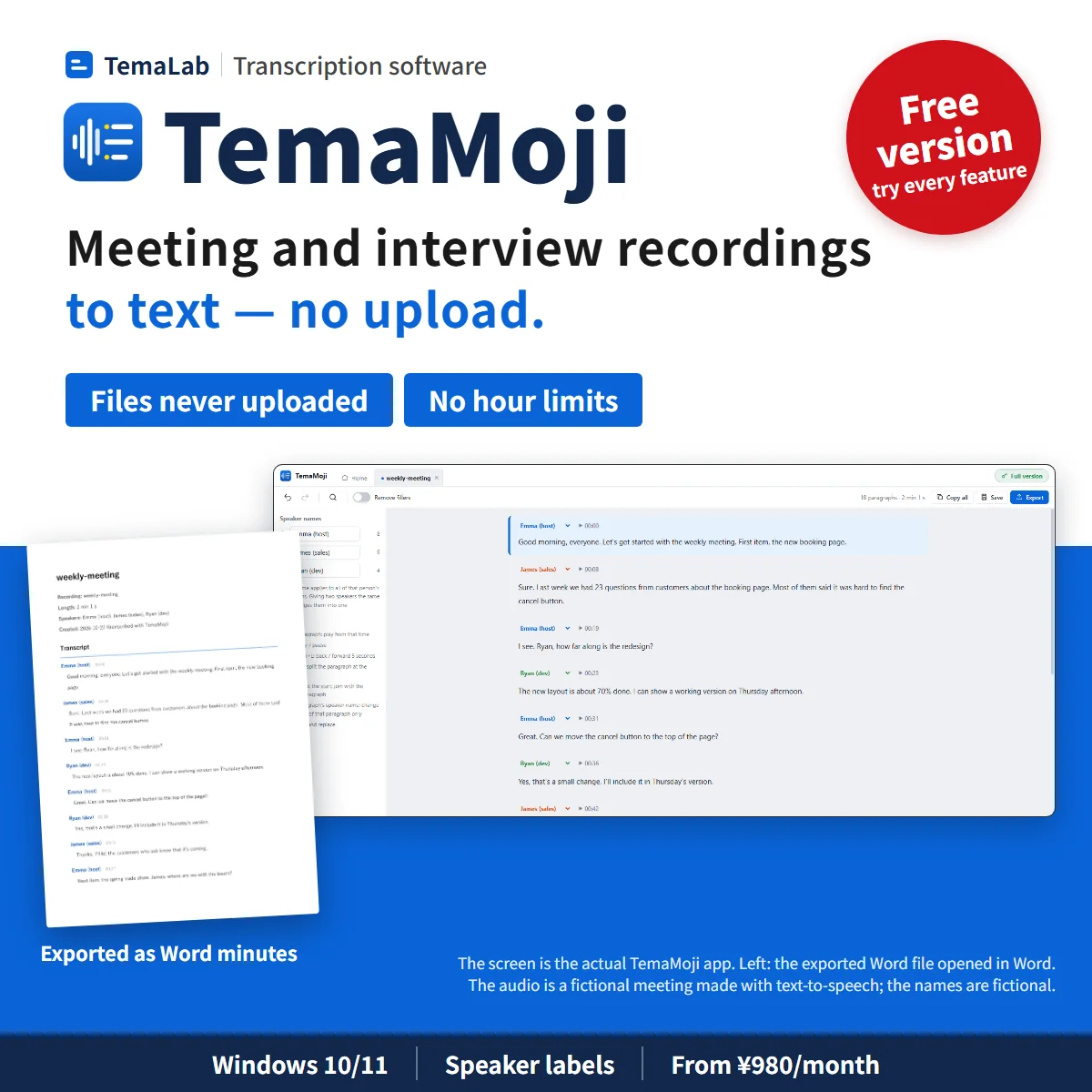
TemaMoji tells speakers apart by their voices, starts a new paragraph when the speaker changes, and labels them “Speaker 1”, “Speaker 2” and so on. Rename a speaker to “Emma (host)” and every one of their paragraphs updates.
Similar voices, or people talking over each other, can be mixed up. You can reassign a paragraph's speaker, or split and join paragraphs. If you know how many people are speaking, setting the number helps.

Listen back and fix it on the spot
Click a paragraph and the audio plays from that moment, so you can correct the text as you listen. Playback speed (0.5–2×) and skipping back or forward 5 seconds also work from the keyboard.
Names and terms that keep coming out wrong can be fixed everywhere at once with find and replace. A “Remove fillers” switch takes out “um” and “uh”.

Word, plain text, subtitles (SRT) or CSV
Word (.docx) comes out as minutes: the recording's details at the top, then each speaker's name and time followed by what they said. Open it in Word and add headings or decisions. You can also export plain text (.txt), subtitles for video (.srt), or a table that opens in Excel (.csv), with or without times and speaker names.
Your work is saved as a TemaMoji file, so you can come back and keep editing later.

Ask Claude to transcribe a recording and write up the minutes
The full version can be driven from Claude Code or the Claude desktop app on your PC. Ask “Transcribe this recording and sum up the key points in three lines” and TemaMoji opens (even if it was closed) and does the work. You can watch the text appear and the speakers get labeled on screen. It uses MCP, the standard way to connect AI assistants to apps.
While it works, a bar at the bottom of the window says the AI is at work, with progress and a Stop button. When it's done, TemaMoji exports Word, text, subtitles or CSV and opens the transcript, so you can fix speaker names and mistakes right away and export again.
By default, TemaMoji doesn't send the transcript text to Claude. It writes the files and returns their locations, plus the length, language, number of speakers and number of paragraphs. To summarize, though, Claude has to read the text: if Claude opens the exported text file, or you explicitly ask for the text to be passed to Claude, the transcript is sent to Claude (an AI service). For meetings that must stay private, ask Claude to “just export the files” and don't ask for a summary.
TemaMoji has no feature that sends files anywhere or deletes them, and it never changes your original recording. If a file with the same name exists, it stops before transcribing. The spoken language can be automatic, English, Japanese or Chinese — tell Claude “it's an English recording” and it will pass that on.
You set it up once. In TemaMoji, choose Help > “Use from AI (register with Claude)…” to copy a one-line command for Claude Code, or the config JSON for the desktop app's Chat tab, tailored to your PC.
claude mcp add --scope user temamoji -- "<install folder>\Temamoji.exe" --mcpFor scripts, the same is available from the command line (for example temamoji.cmd transcribe, full version). It takes as long as transcribing on screen: on a PC without an NVIDIA GPU, roughly the length of the recording.
Transcribing and exporting from AI (Claude) or the command line is a full-version feature. The free version can still connect, check the license and inspect recordings (length, estimated time and estimated number of speakers); if you ask it to transcribe, nothing is read and Claude is told it's a full-version feature. It may also work with other AI tools that support MCP (we've tested it with Claude). Claude Code and the Claude desktop app are separate products, and Claude is not included in the price of TemaMoji. See our guide How to have Claude transcribe a meeting recording and write the minutes and the “Use from AI” chapter of the user guide (PDF).
Compared with online transcription services and free open-source apps
Online transcription services need you to upload the recording to their servers, and their plans usually cap the minutes per month or per recording. TemaMoji transcribes on your PC, so confidential meetings and interviews you've promised to keep private stay with you, and a three-hour recording costs the same as a three-minute one. What online services do that TemaMoji doesn't: join live meetings, transcribe in real time, and share transcripts with your team in the browser. TemaMoji works on recordings you already have.
Free open-source apps built on the same kind of speech model can also transcribe on your PC, and some are very good. What TemaMoji adds: speaker labels with names you can change in one place, an editor where clicking a paragraph plays that moment, minutes-style Word export, and, in the full version, control from Claude. Try the free version and see whether that's worth it to you.
Internet is used only to download the transcription model once (about 570 MB), activate your license and check for updates. After that, transcription works without a connection.
More features
Save and autosave
Save your edits and pick up later. Transcripts are also saved automatically when transcription finishes.
Undo and copy all
Undo and redo every edit, or copy the whole transcript in one go.
Choose the accuracy
Pick the standard model, a more accurate one, or a lighter, faster one.
English, Japanese or Chinese
The app follows your Windows display language (English, Japanese or Simplified Chinese), or you can pick one under Settings > Display language. Word headings, CSV column names and default speaker names (“Speaker 1”) follow it too.
Guides
- An Otter.ai alternative that runs on your PC (for recorded files)
What changes when you transcribe on your own PC instead of in the cloud, honestly compared.
- How to transcribe an interview on Windows without uploading it
Split interviewer and interviewee, check quotes by ear, and export a clean transcript.
- How to have Claude transcribe a meeting recording and write the minutes
Set up TemaMoji with Claude Code or the Claude desktop app, what to ask, and how to keep the transcript away from the AI.
What you can do with the free version
Every feature works on screen in the free version. The differences are how much you can export and copy, and transcribing from AI.
The whole recording, on screen
Transcribe recordings of any length and read and edit the whole thing on screen. Test the accuracy and speed on your own recordings before you decide.
Export and copy the first 10 minutes
Anything after 10 minutes is replaced with a note that it can be exported with the full version. Recordings under 10 minutes can be exported in full.
AI transcription is in the full version
Transcribing and exporting from AI (Claude) or the command line is a full-version feature. The free version can still connect, check the license and inspect recordings.
Unlock with a key
Enter a license key and the same app exports and copies everything.
Pricing (from ¥980/month, no hour limits) (tax incl.)
Prices are in Japanese yen. US$ amounts are approximate, at ¥155 = US$1 (our reference rate as of October 27, 2026); your card issuer's rate applies. Try the free version on your own recordings first. Every paid plan transcribes unlimited hours and files. Purchases from the EU and the UK aren’t available yet.
Free version
Monthly
Yearly
One-time
Free vs. full version: The full version removes the 10-minute limit on exporting and copying. It can also be driven from Claude Code or the Claude desktop app on your PC: ask “Transcribe this recording and sum up the key points in three lines” and TemaMoji opens and does the work. The free version lets you try every feature on screen (export and copy cover the first 10 minutes); from AI, it can only connect, check and inspect.
It may also work with other AI tools that support MCP (we've tested it with Claude). Claude is not included in the price of TemaMoji.
Monthly and yearly plans renew automatically until you cancel, and you're charged on each renewal date. You can cancel anytime from the link in your purchase email and keep using TemaMoji until the end of the current period (no prorated refunds).
If TemaMoji doesn't work properly on a PC that meets the system requirements within 14 days of purchase, we'll refund you in full. See our Refund Policy.
System requirements
These are guidelines. Please try the free version on your own PC and recordings to check speed and accuracy.
| OS | Windows 10 / 11 (64-bit) |
|---|---|
| Memory | 8 GB or more |
| Disk space | 2 GB or more (including the transcription model, about 570 MB). Installer: about 175 MB |
| Speed | Without an NVIDIA GPU, transcription takes roughly as long as the recording (a 32-minute recording took about 36 minutes on our test PC). With an NVIDIA GPU, adding the GPU version (about 670 MB, from within the app) makes it several times faster |
| Input | Audio: mp3, m4a, wav, aac, flac, ogg, opus, wma, amr. Video: mp4, mov, mkv, webm, avi, wmv, m4v, mpg, mpeg, ts, 3gp |
| Output | Word (.docx), plain text (.txt), subtitles (.srt), CSV (.csv) |
| Spoken languages | English, Japanese and Chinese (or detect automatically) |
| App languages | English, Japanese and Simplified Chinese (follows Windows, or choose under Settings > Display language). The installer is in the same three languages |
| AI control (full version) | Claude Code and the Claude desktop app (MCP), plus a command line (temamoji.cmd) |
| Internet | Only to download the transcription model once, activate and check your license, and check for updates. Your recordings and transcripts are never sent |
FAQ
Questions or problems? Email [email protected] — we answer in English.
Can I buy it from the EU or the UK?
Not yet, sorry. We’re still setting up VAT registration for the EU and the UK, so purchases from those countries aren’t open. You can download and use the free version anywhere.
Are my recordings uploaded anywhere?
No. You never upload your recordings. TemaMoji goes online only to download the transcription model the first time, to activate and check your license, and to check for updates. It never sends your recordings or transcripts.
So does it work offline?
Once the transcription model is downloaded, transcribing and speaker labeling happen entirely on your PC and work without an internet connection. You need to be online to download the model the first time, to activate your license, for the periodic license check, and to download updates.
Is there a limit on hours?
No. The full version transcribes and exports recordings of any length, as many as you like, at no extra charge. How long it takes depends on your PC (without an NVIDIA GPU, roughly the length of the recording).
How accurate is it?
It depends heavily on the recording — distance from the microphone, background noise and how people speak — so we don't quote a figure. The free version transcribes the whole recording so you can check it on screen with your own files.
Can it transcribe English and Chinese recordings?
Yes. Choose English, Japanese or Chinese as the spoken language, or let TemaMoji detect it. If you know the language, choosing it is more reliable.
How good is the speaker labeling?
Speakers are told apart by voice, so similar voices or people talking over each other can be mixed up. You can reassign a paragraph's speaker, split or join paragraphs, and give two labels the same name to merge them.
What does the Word export look like?
A title (the recording's name) and the recording's details (file, length, speakers, date), then a “Transcript” section with each speaker's name and time followed by what they said. It's an ordinary Word document, so you can add headings and decisions in Word. You can also leave out times or speaker names.
Can it summarize or write minutes automatically?
TemaMoji itself doesn't summarize; it focuses on producing a speaker-labeled transcript quickly. With the full version, you can ask Claude Code or the Claude desktop app to “transcribe this recording and sum up the key points in three lines”: TemaMoji transcribes and exports, and Claude writes the summary. In that case the transcript text is sent to Claude (an AI service).
Can I use it from Claude (AI)?
Yes, with the full version. Drive TemaMoji from Claude Code or the Claude desktop app on your PC: ask “Transcribe this recording and sum up the key points in three lines” and TemaMoji opens and does the work. It uses MCP. Set it up once with the one-line command (Claude Code) or config JSON (desktop app Chat tab) copied from Help > “Use from AI (register with Claude)…”. It may also work with other AI tools that support MCP (we've tested it with Claude). Claude is not included in the price of TemaMoji.
When I use it from AI, does the AI see my recordings or transcripts?
The recording itself is never sent anywhere. By default, TemaMoji doesn't pass the transcript text to Claude either — it returns only the exported file locations, the length, language, number of speakers and number of paragraphs. But to summarize, Claude has to read the text: if Claude opens the exported text file, or you ask for the text to be passed to Claude, the transcript is sent to Claude (an AI service). For recordings that must stay private, ask Claude to “just export the files” and don't ask for a summary.
Can I use it from AI with the free version?
You can connect it, check the license and inspect recordings (length, estimated time and estimated number of speakers). Transcribing and exporting is a full-version feature; with the free version, nothing is read and Claude is told it's a full-version feature. On screen, the free version transcribes whole recordings and exports the first 10 minutes.
Can it transcribe while I'm recording, or join my online meetings?
No. TemaMoji transcribes recordings that already exist — audio or video files from a recorder, phone or meeting app.
How do I install it?
Run the downloaded file (Temamoji-Setup-1.0.0.exe). If Windows shows a blue “Windows protected your PC” screen, click “More info” and then “Run anyway” — the installer isn't code-signed yet, so please make sure you downloaded it from temaheru.com. The installer appears in your Windows display language (English, Japanese or Simplified Chinese). The shortcut is named “テマモジ (TemaMoji)” — type TemaMoji in the Start menu search to find it. The app opens in English when Windows is set to English, and you can switch under Settings > Display language. The first time you transcribe, it downloads the transcription model (about 570 MB).
Does it work on a Mac?
Not at the moment — Windows only.
What if I get a new PC?
Unregister the license on your old PC (Help > License… > Unregister this PC), then register it on the new one. If the old PC no longer works, email us at [email protected].
Will I get a receipt?
Yes. Stripe emails you a receipt after payment.
Why are prices in yen?
TemaLab is based in Japan, so we charge in Japanese yen. Your card issuer converts the amount to your currency; the US$ figures on this page are estimates.